Rig / bone visualiser (Scene gizmo + in-game overlay)
The rig is invisible. Every role is an empty GameObject with no mesh, so you can’t see the skeleton or tell whether a link points at the right thing. The visualiser draws each relationship as a coloured line joining its two GameObjects, with a dot at each end so the empties show up — the same picture in the Unity Scene view and in game.
This isn’t a role and there’s nothing to bake — it’s always available.
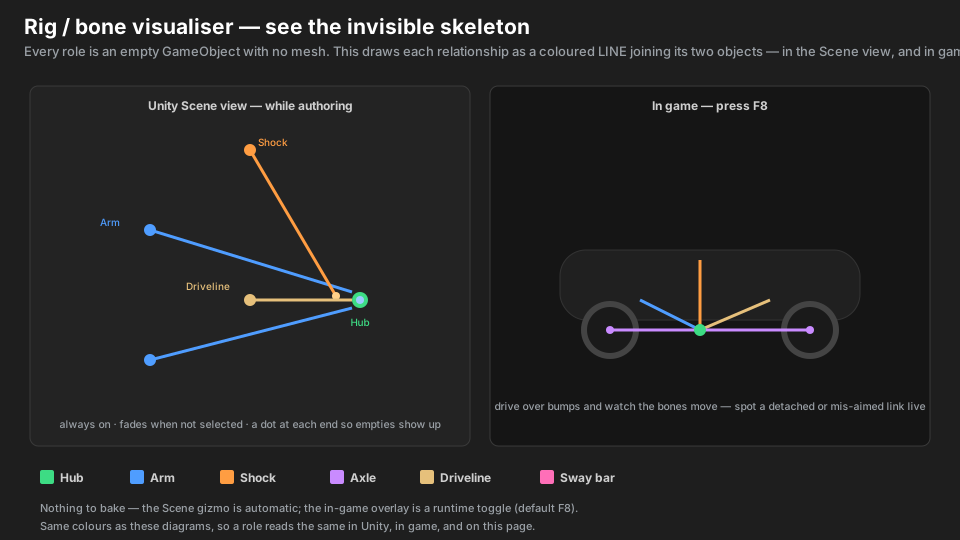
Two views, same lines
| Where | How to see it | What it’s for | |
|---|---|---|---|
| Scene gizmo | Unity, editing | automatic — just look at the Scene view | place empties and instantly see the bone connecting them and where it aims, no play mode |
| In-game overlay | CarX, driving | press F8 to toggle | drive over bumps and watch the bones move — catch a detached or mis-aimed link under real travel |
What each line means
The colour tells you the role (the same palette as every diagram on this site):
| Colour | Role | Line drawn |
|---|---|---|
| 🟢 green | Hub | hub → its game wheel (in game); a dot at the wheel centre in the editor |
| 🔵 blue | Arm | inner pivot → outer target |
| 🟠 orange | Shock | top mount → lower mount (the strut line) |
| 🟣 purple | Axle | left mount → right mount (the beam) |
| 🟡 gold | Driveline | halfshaft: inner joint → hub (a prop shaft shows its spin axis) |
| 🟣 pink | SwayBar | left link → right link |
Using it while authoring (Unity)
- Open the Scene view with your rig selected. The lines are on by default — you don’t enable anything.
- Selected markers draw bright and thicker with a small label; everything else fades back so a big rig isn’t a wall of lines.
- Move an empty and watch its line follow. If a line points somewhere wrong — an arm aiming past the hub, a shock’s lower mount on the chassis instead of the kingpin — you’ll see it immediately.
Using it in game (CarX)
- Load the car with your setup applied.
- Press F8 to toggle the overlay on. The same coloured lines draw over the live rig.
- Drive. As the suspension works, the lines move with it — a link that detaches or aims at the wrong point stands out at once.
- Press F8 again to hide it.
Gotchas
- Nothing shows in the editor? The gizmo draws for
KSuspBonemarkers — make sure your empties actually have the component, and that Gizmos are enabled in the Scene view toolbar. - F8 does nothing in game? The overlay only draws while a setup is applied to the loaded car. If
no
.ksuspmatched this car, there’s nothing to draw. (The key is F8 by default.) - The overlay stays dark even when toggled on means the game build had no usable line shader to borrow — rare, and it fails quietly rather than spamming. The Scene gizmo still works regardless.
- Hubs have no line in the editor. A hub’s partner is the game wheel, which only exists at runtime — so in Unity you get a dot at the wheel centre, and the full hub → wheel line in game.